Faint digits and separators
Zoom in on decimal points, negative signs and similar characters such as 0 and O. Confirm the currency and date format. If the source itself is ambiguous, do not convert an assumption into a confirmed value.
FOR PAPER INVOICES AND SCANNED PDFS
Turn supplier invoice scans into a spreadsheet you can check and use. Bring invoice details and item rows together, with a clear review step for the values that matter.
No credit card required
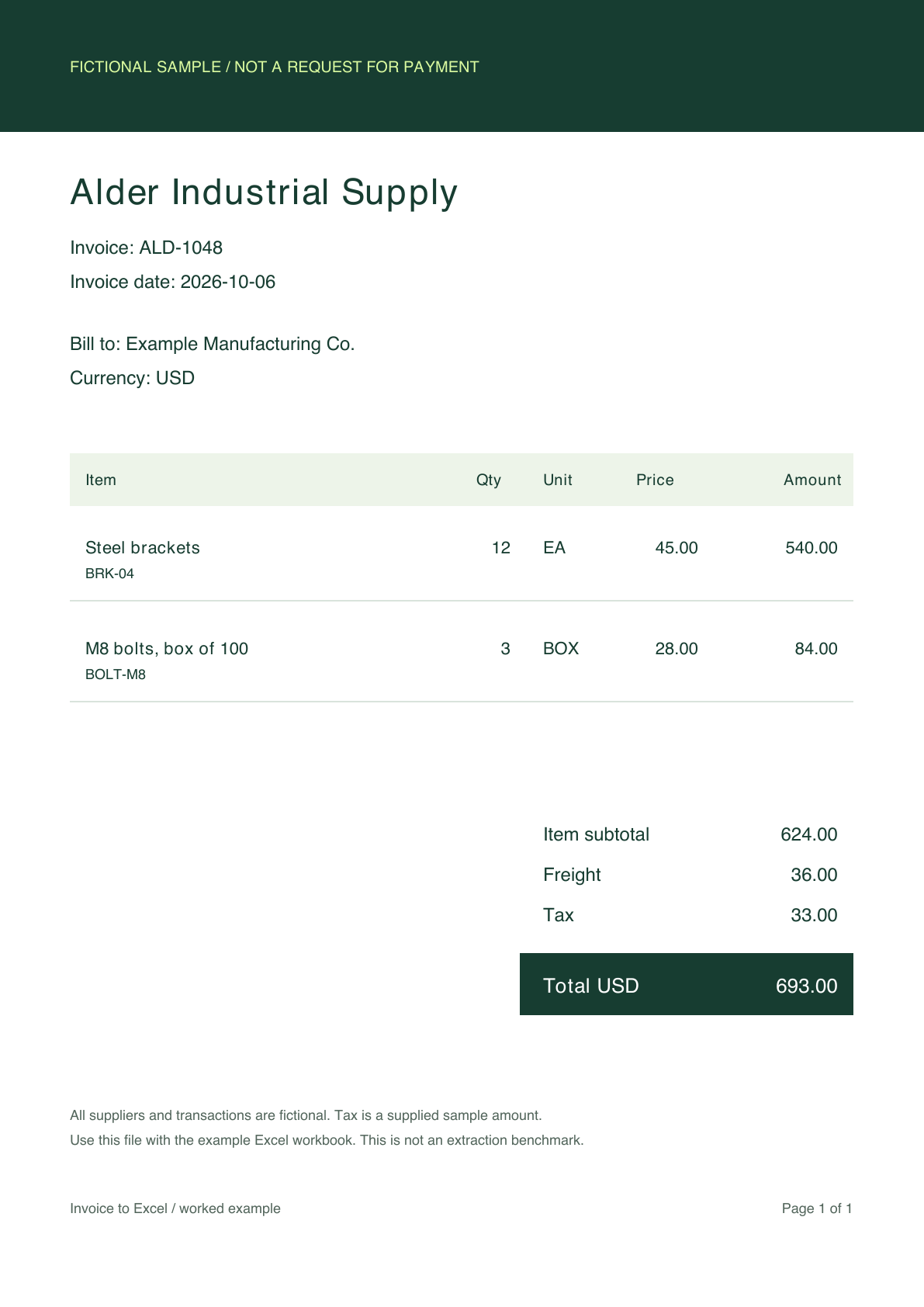
Designed example. Read the source and compare the values below; this is not a live extraction result.
FOLLOW ONE INVOICE THROUGH THE CHECK
Alder Industrial Supply has two item rows. Keep the quantity, unit and price together, then reconcile the charges shown below the table.
| Item | Quantity | Unit | Unit price | Line amount |
|---|---|---|---|---|
| Steel brackets · BRK-04 | 12 | EA | 45.00 | 540.00 |
| M8 bolts · BOLT-M8 | 3 | BOX | 28.00 | 84.00 |
Scroll sideways to see all columns on a small screen.
A wrong invoice number or an incorrect unit can still sit beside the right total. Check identity, item rows and arithmetic separately. Keep the source file reference with the reviewed record.
A PRACTICAL SCAN-TO-EXCEL WORKFLOW
Start with a few representative invoices, including the supplier layouts and scan conditions your team sees most often.
Keep the whole page visible, upright and in order. Check that the invoice reference, right-hand amounts and footer totals are present. Preserve the original before making a clearer working copy.
In DigiParser, set up supplier, invoice number, date, currency and total. Add quantity, unit, unit price and line amount if your team needs item-level detail.
Open the document beside its extracted fields and tables. Correct values you can verify. If a critical value cannot be read, request a clearer source before approving the record.
Choose invoice fields, separate table sheets or flattened rows to suit the next task. Confirm the exported row counts, dates and invoice totals before using the file.
CHECK THE WEAK POINTS BEFORE A LARGE BATCH
Zoom in on decimal points, negative signs and similar characters such as 0 and O. Confirm the currency and date format. If the source itself is ambiguous, do not convert an assumption into a confirmed value.
Count source pages and invoice records separately. One invoice may span several pages; one scan file may contain several invoices. Check continued tables and prevent repeated headers from becoming item rows.
Look below the items for discounts, freight and tax. Preserve the displayed amounts in separate columns. Do not assume that the sum of item rows equals the final amount due.
Include a clear scan, a typical office scan and a continued invoice from your own files. Record which values needed correction and which sources needed replacement. Set a review process for those exceptions before processing the full folder.
Need the wider PDF workflow? Compare digital PDFs, scans and continued tables.
A REAL FILE TO INSPECT
Download three fictional invoice pages rendered as images inside a PDF. Compare the printed amounts with the companion Excel workbook before trying your own scans.
Clean, simulated scans made from digital examples. They do not represent faded paper or measured extraction accuracy. Workbook source names use equivalent HTML filenames with the same invoice identifiers.
The PDF contains one invoice per page. The Excel workbook shows the intended reviewed output and reconciliation formulas.
Download scanned PDF Download matching Excel workbookYOUR QUESTIONS, ANSWERED
Yes. DigiParser can read scanned invoices into named fields and item tables, which you can review and export to XLSX. A scan contains an image of the page, so clear source text matters. Review the values before using the spreadsheet.
You can upload the scanned invoice directly. You do not need to copy its text into a separate document first. Choose the fields and item columns you need, then check the extracted result against the scan.
Get a clearer copy from the supplier or scan the original again. Increasing the size of a blurred image does not recover missing detail. Keep the affected record in review until the value can be confirmed.
Keep its pages together and in order. Check the first and last item on each page, repeated table headers and carried-forward amounts. A page subtotal must not become another item or another invoice total.
Yes. Each of its three pages is a separate fictional invoice. It demonstrates a scan batch, not one three-page invoice. Identify document boundaries and configure or separate the files as needed before processing your own batch.
Yes. Use invoice fields for the bill-level data and a table for the items. XLSX export can keep tables on separate sheets. A flattened export repeats invoice fields beside item rows, so count each invoice total only once.
TRY YOUR OWN INVOICES
Start with a few supplier files. Check the result before you scale.
No credit card required