Maintenance and service bills
Bring labor hours, service rates, materials and totals into separate columns. Include the job or equipment reference when it appears on the invoice, so the cost can be associated with the right work.
FOR HANDWRITTEN BILLS AND COMPLETED PAPER FORMS
Bring handwritten supplier bills into your spreadsheet workflow. Extract invoice details, quantities and amounts from saved images or scans, then use the rows for bookkeeping, purchasing and review.
No credit card required
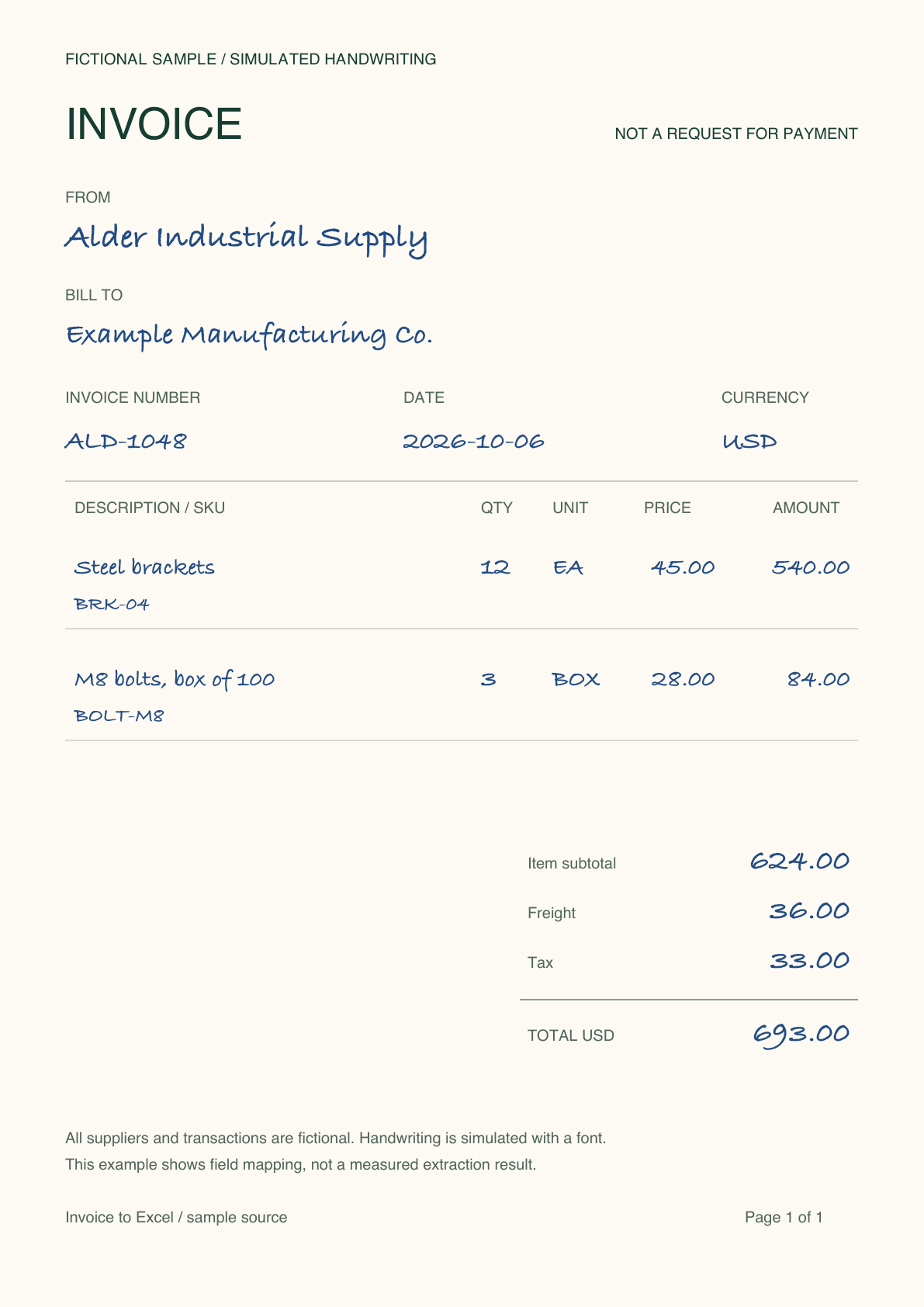
Designed example. The download includes this source and matching workbook data.
ONE INVOICE, A CLEAR COLUMN STRUCTURE
The sample supplier bill has handwritten-style entries for the reference, quantities, units and prices. The output separates those entries so your team can sort, calculate and compare them.
| Field | Value |
|---|---|
| Supplier | Alder Industrial Supply |
| Invoice number | ALD-1048 |
| Date | 2026-10-06 |
| Currency | USD |
| Item subtotal | 624.00 |
| Freight / tax | 36.00 / 33.00 |
| Invoice total | 693.00 |
The item sheet contains 12 EA of steel brackets and 3 BOX of bolts. Preserving the unit makes the data useful for purchasing comparisons and prevents a box from being treated as a single piece.
BUILT AROUND EVERYDAY SUPPLIER WORK
Use the same structured output whether the bill comes from a local supplier, a maintenance contractor or a field service team.
Bring labor hours, service rates, materials and totals into separate columns. Include the job or equipment reference when it appears on the invoice, so the cost can be associated with the right work.
Extract handwritten descriptions, supplier codes, quantities and units. Compare the exported item data with purchasing records without retyping the same invoice table.
Use a consistent invoice register for bills written in different styles. Keep supplier, date, reference, currency and total together, with the source document available for later questions.
FROM PAPER DETAIL TO SPREADSHEET ROWS
Set up DigiParser with the invoice fields and table columns your team needs. Handwritten entries and printed details can feed the same output structure.
Use a complete source image or scan, including the invoice reference and final amount. Keep a source reference with the resulting rows so another person can follow the record back to the bill.
Start with supplier, invoice number, date, currency and total. Add an item table for descriptions, quantities, units and prices. Add a separate notes field for relevant written instructions.
Compare invoice identity, item quantities and amounts with the source. Keep a written note separate from an approved payment decision. Confirm the intended value when the document contains a correction.
Choose XLSX with invoice fields and separate table sheets, or flatten the rows for your next task. Check row counts and keep bill-level totals separate from item-level sums.
If a quantity changes from 12 to 14 at $45 each, the line amount changes from $540 to $630. Confirm whether the invoice total was updated too. This is a document consistency check, even when every handwritten character is read correctly.
Need a detailed item-level layout? Explore the line-item workbook. Working with scanner output? See the scanned invoice guide.
FOLLOW THE WRITING INTO THE WORKBOOK
Compare three handwriting-style invoice examples with their structured Excel output. Follow the supplier, item rows and charges from the source into named columns.
Handwriting is simulated with a font. These designed examples explain the output structure; they are not measured extraction results. Workbook source references use equivalent HTML filenames with the same invoice identifiers.
One image-only PDF with three invoice pages. Download the companion workbook to compare invoice and item data.
Download handwritten examples Download matching Excel workbookYOUR QUESTIONS, ANSWERED
Yes. DigiParser supports handwritten invoice text, including handwritten entries on printed forms. Upload the saved invoice image or scanned PDF, extract the fields and item rows, and export the result to Excel.
Yes. A printed supplier heading and handwritten quantities or amounts can belong to the same invoice record. Choose the fields and item columns you need so the output follows one consistent structure.
No. Upload the source document directly. DigiParser reads the document into structured fields and tables, which you can inspect beside the original before exporting.
Yes. Set up table columns for description, quantity, unit, unit price and amount. Keep invoice-level fields such as supplier, invoice number and currency separate from the individual items when that suits your workbook.
Add fields for the notes and references your workflow needs. Keep them separate from amounts and payment status. A job reference can be extracted when it appears on the document; assigning a missing accounting code requires your own business rules.
Yes. Use consistent output fields across the batch and keep source references with the rows. Check invoice identity, item counts and totals, then export the selected records to XLSX.
Compare the correction with the rest of the invoice, including its line amounts and final total. Record the intended value once it is confirmed. Reading a written correction and deciding which amount is approved for payment are separate steps.
TRY YOUR OWN INVOICES
Start with a few supplier files. Check the result before you scale.
No credit card required