Keep the whole invoice
Include all four page edges. Keep the invoice number, currency and totals visible. Remove surrounding clutter only if every invoice field remains in the working image. Keep an unchanged original.
FOR SAVED JPG AND PNG INVOICES
Make supplier invoice images useful beyond the inbox. Extract the bill details and item rows, review them against the original, and download a spreadsheet for your next task.
No credit card required
The download holds 3 invoices in 2 formats. Count each bill once.
Designed example, not a live extraction result. Keep the source identity with the exported rows.
FROM AN IMAGE TO NAMED COLUMNS
A supplier image holds the invoice reference, item table and totals in different places. A useful export gives each value a clear home.
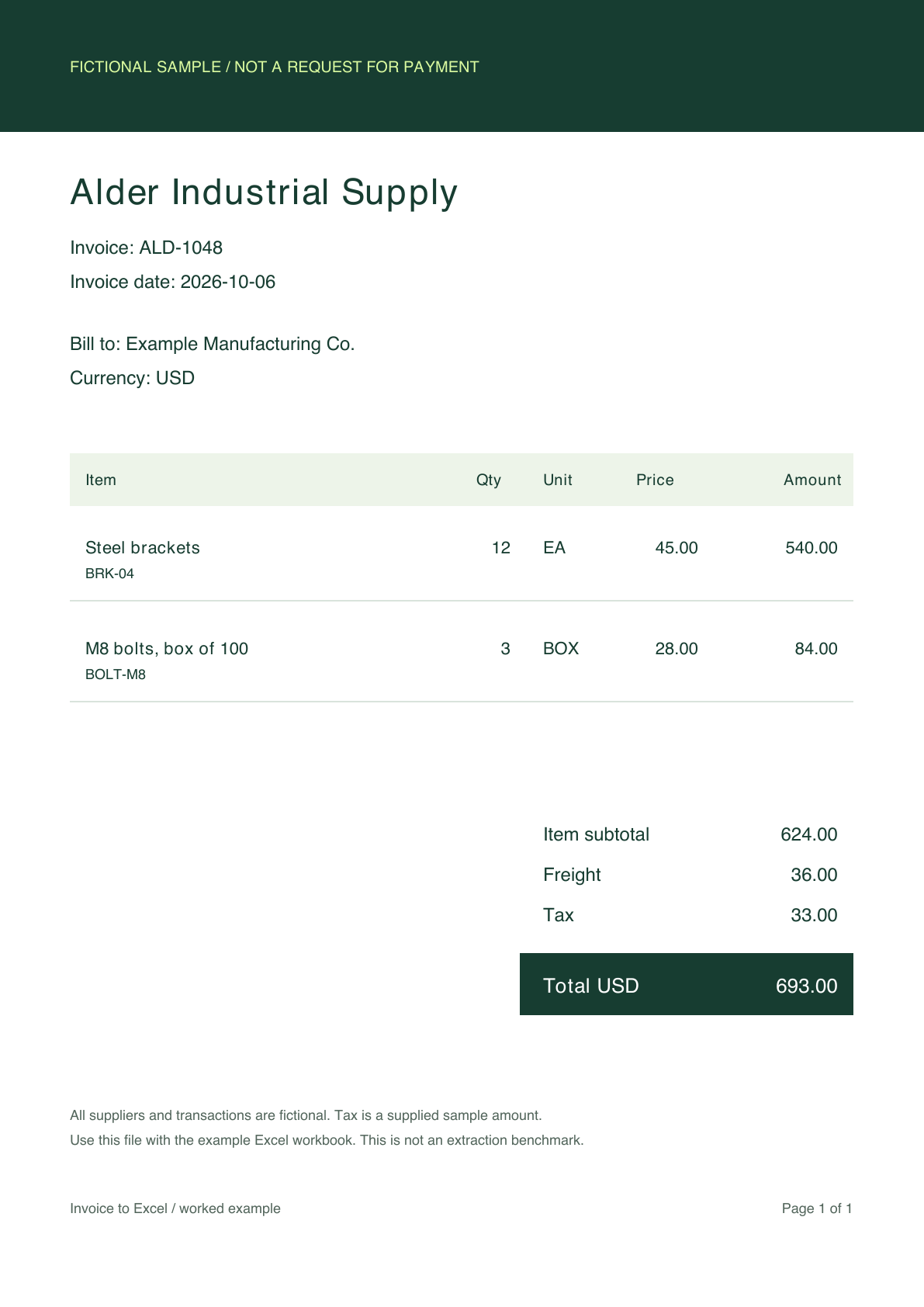
| Excel column | Value |
|---|---|
| Supplier | Alder Industrial Supply |
| Invoice number | ALD-1048 |
| Currency | USD |
| Item subtotal | 624.00 |
| Freight | 36.00 |
| Tax | 33.00 |
| Invoice total | 693.00 |
This invoice contains 12 EA and 3 BOX. Put units beside quantities in the item sheet. A box quantity is not a count of individual bolts.
BEFORE YOU UPLOAD THE IMAGE
For files supplied by a vendor, ask for the original attachment. When taking a new photo, use these checks before saving or sending it.
Include all four page edges. Keep the invoice number, currency and totals visible. Remove surrounding clutter only if every invoice field remains in the working image. Keep an unchanged original.
Hold the camera square to the page. Avoid glare, shadows and motion blur. Zoom in on the smallest printed amounts before you finish. Take another photo if a digit or decimal point cannot be read.
Use the original image rather than a screenshot of its preview. Avoid repeated compression. Keep a source list so forwarded copies, alternate formats and retaken photos do not become extra bills.
FROM A SAVED IMAGE TO A REVIEWED FILE
For an invoice register, choose supplier, invoice reference, date, currency and total. For purchasing analysis, add an item table with description, quantity, unit and price.
Upload the image to DigiParser and compare the extracted data with the source. Correct readable errors; request a new file when important information is missing or unclear.
Review fields beside the document · Choose an XLSX export structure
Compare supplier and invoice number across incoming files. Keep multiple pages of one bill connected. A filename alone does not prove that the invoice is new.
Confirm quantities, units and prices against the image. Keep freight, discounts and tax separate from items. Compare the calculation with the displayed total.
Use XLSX with separate tables when bill-level amounts and item rows need different sheets. Verify dates and identifiers, preserve leading zeros, and keep a source reference for later questions.
Try representative vendor attachments, saved phone photos and long invoices. Record corrections and missing information. Agree who reviews exceptions before using the workflow for routine supplier bills.
Need detailed item columns? Explore the line-item workbook and checks. Have handwritten entries? See the handwritten invoice example.
COMPARE TWO IMAGE FORMATS
Use the sample images to trace invoice fields and item amounts into the companion Excel file. Choose one format per invoice when you test a batch.
These are clean rendered images, not real camera photos or extraction benchmarks. Test your own photos separately. Workbook source references use equivalent HTML filenames with the same invoice identifiers.
The ZIP contains three JPGs, three PNGs and a short guide. Every pair holds the same invoice and the same amounts.
Download JPG + PNG examples Download matching Excel workbookYOUR QUESTIONS, ANSWERED
Yes. DigiParser supports handwritten text as well as printed invoice details. Set up your invoice fields and item columns, upload the saved image, and review the structured result before exporting to Excel.
Yes. Upload the existing image to DigiParser, choose invoice fields and item columns, review the result and export XLSX. Use a clear image that includes the full invoice, especially its reference and totals.
No. You can use a supported JPG or PNG directly. Wrapping the same image inside a PDF does not add detail or fix a blurred amount. Keep the clearest original file available.
You can upload an existing invoice photo in a supported image format. Capture the whole page square-on with readable text and even light. This workflow starts with your saved file; it is not an in-browser camera scanner.
Use the clearest source you already have. Both can contain the invoice information you need. Repeatedly saving a JPG can lose detail; converting a low-quality JPG to PNG does not restore that detail. Avoid extra conversions when the original is readable.
Use the original attachment where possible. A screenshot or messaging preview may omit the invoice edges or reduce text detail. If you only have an image, confirm that the invoice reference, item table and totals are all readable before using it.
Keep their relationship in your source inventory and choose the clearest complete version for processing. Compare supplier and invoice reference when checking repeated bills. Do not count both the JPG and PNG example as different invoices.
The goal is structured data, not a visual copy of the page. The workbook contains named columns and item rows that you can filter and compare. Keep the source image alongside the spreadsheet when you need the original layout.
TRY YOUR OWN INVOICES
Start with a few supplier files. Check the result before you scale.
No credit card required